If you wish to change your Administrator password, you can do so by following the simple steps below;
First, you will need to login to the LMS as an Administrator.
Once logged in, you will need to select your name from the top right of the page - this should look similar to the screenshot below:

On the following screen, you will need to select the ‘Password’ field and enter the new password you wish to use - this must be at least 6 characters long.
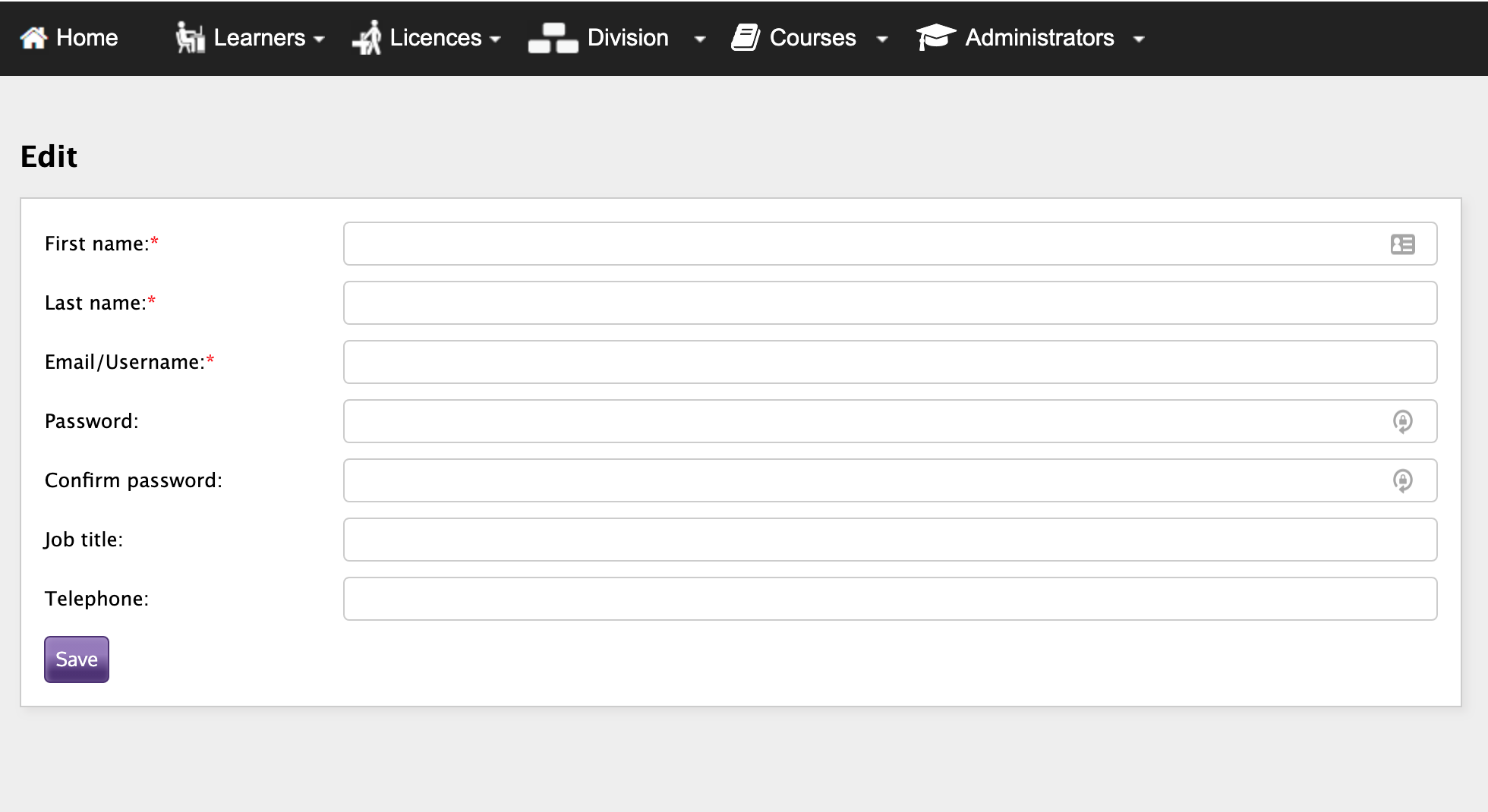
Select the ‘Confirm Password’ field and re-enter the new password you wish to set.
Once done, select the ‘Save’ button at the bottom left and your new password will now be in use.
When you have saved your new password, please logout of the LMS and log back in using the new password you have just created.