If you have purchased the course(s) for yourself and need some help getting started, please read the steps below.
If someone has purchased the course(s) for you to take and you need some assistance, please click here.
Once you have purchased your course(s), you should receive an order confirmation email followed by a separate email with Administrator login details. Your Administrator logins will allow you to create and assign courses to learners.
To login, you can either click the link in the email or use the link below.
Please note that you will need to login as an Administrator first, in order to create learners and assign courses to them. Even if you have purchased the course for yourself, you will still need to create a Learner account to assign the course(s) to.
https://www.foodsafetyatwork.co.uk/login/
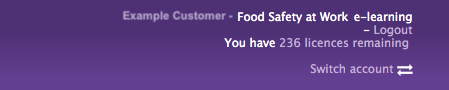
Once you’ve logged into the Learner Management System as an Administrator, you should see an indicator at the top right of the screen that shows how many licenses you have remaining. These licences are the unassigned courses that you have available in your account - you should be able to see something similar to the picture below.
How To Assign Courses To A Learner
First, you will need to create learner accounts to assign courses to.
To start this process, select the ‘Add new learner’ option in the green box at the top left. 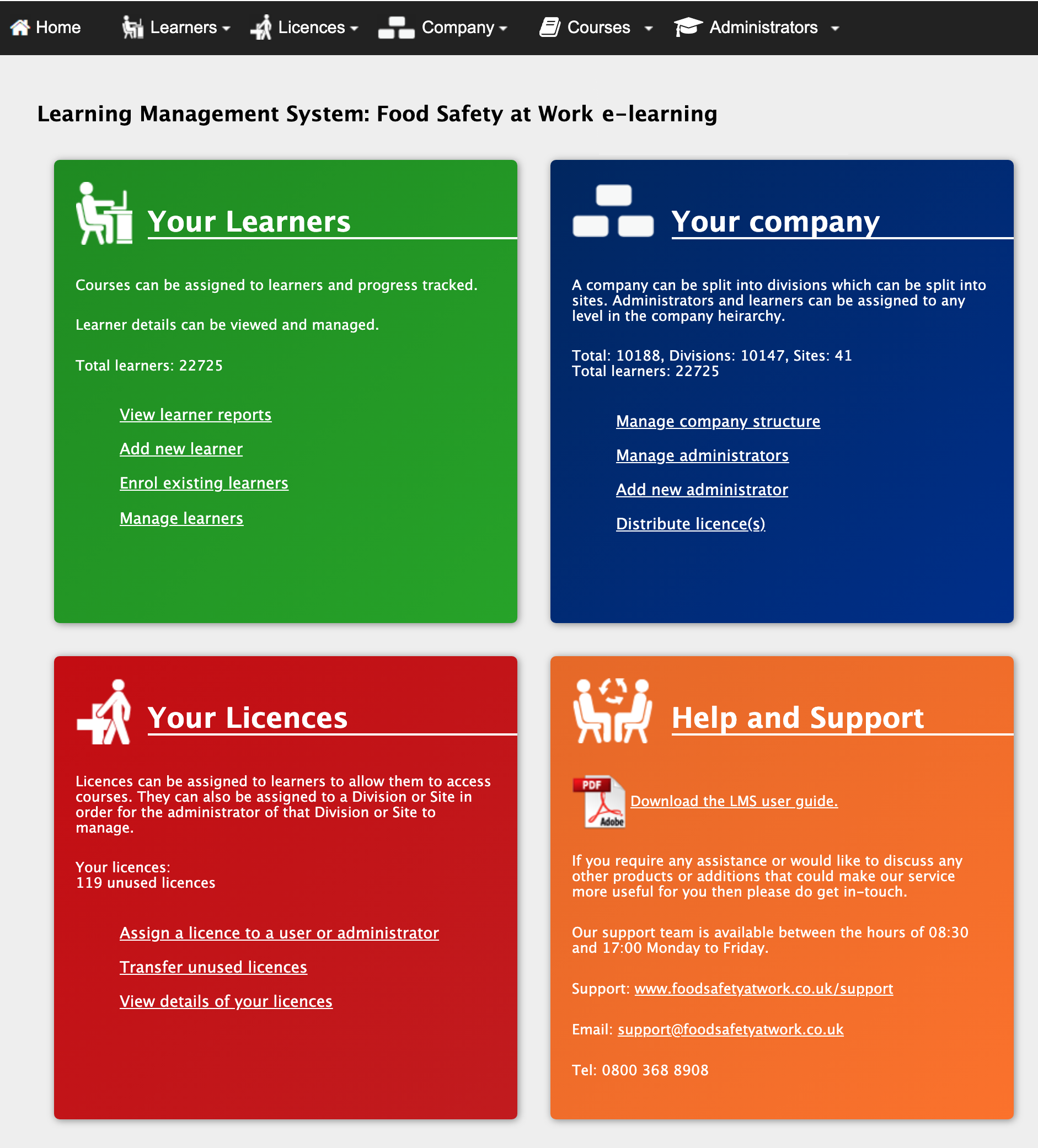
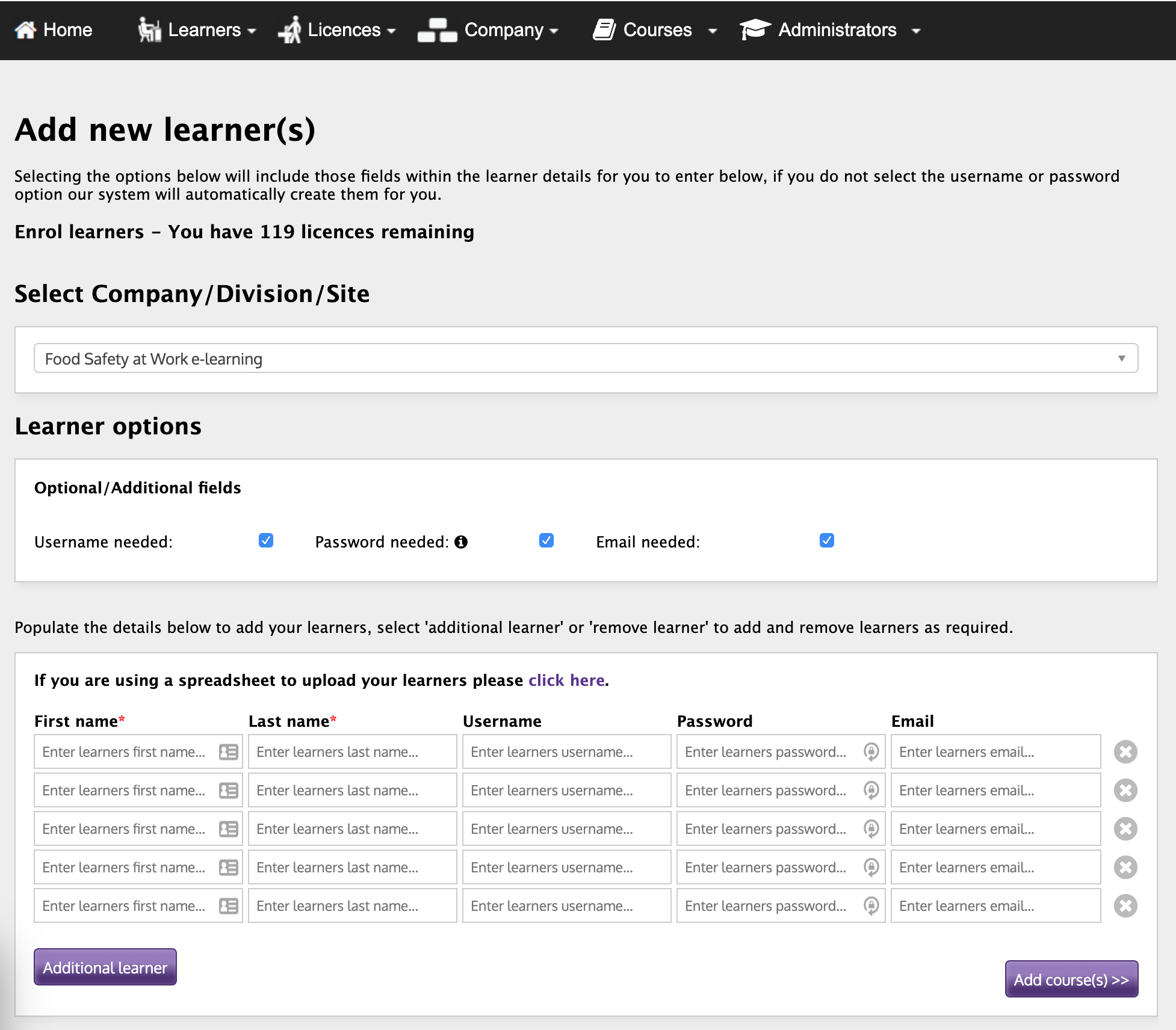
On the next screen, select all tick boxes under the ‘Learner Options’ heading as this will allow you to create memorable login details for the course and generate an email with the details to be sent to the learner(s).
Please note: If you are creating a learner account for yourself then you do not need to select the ‘Email Needed’ tick box as the Administrator email always receives a copy of the enrolment results for the learner(s).
If you need to create multiple learners at once, you can select the ‘Additional Learner’ button at the bottom left which will provide extra rows to fill in.
Fill in the learner details as preferred - the ‘First Name’ and ‘Last Name’ fields are mandatory.
Once you have entered all desired information for the learner(s), select ‘Add Course(s)’
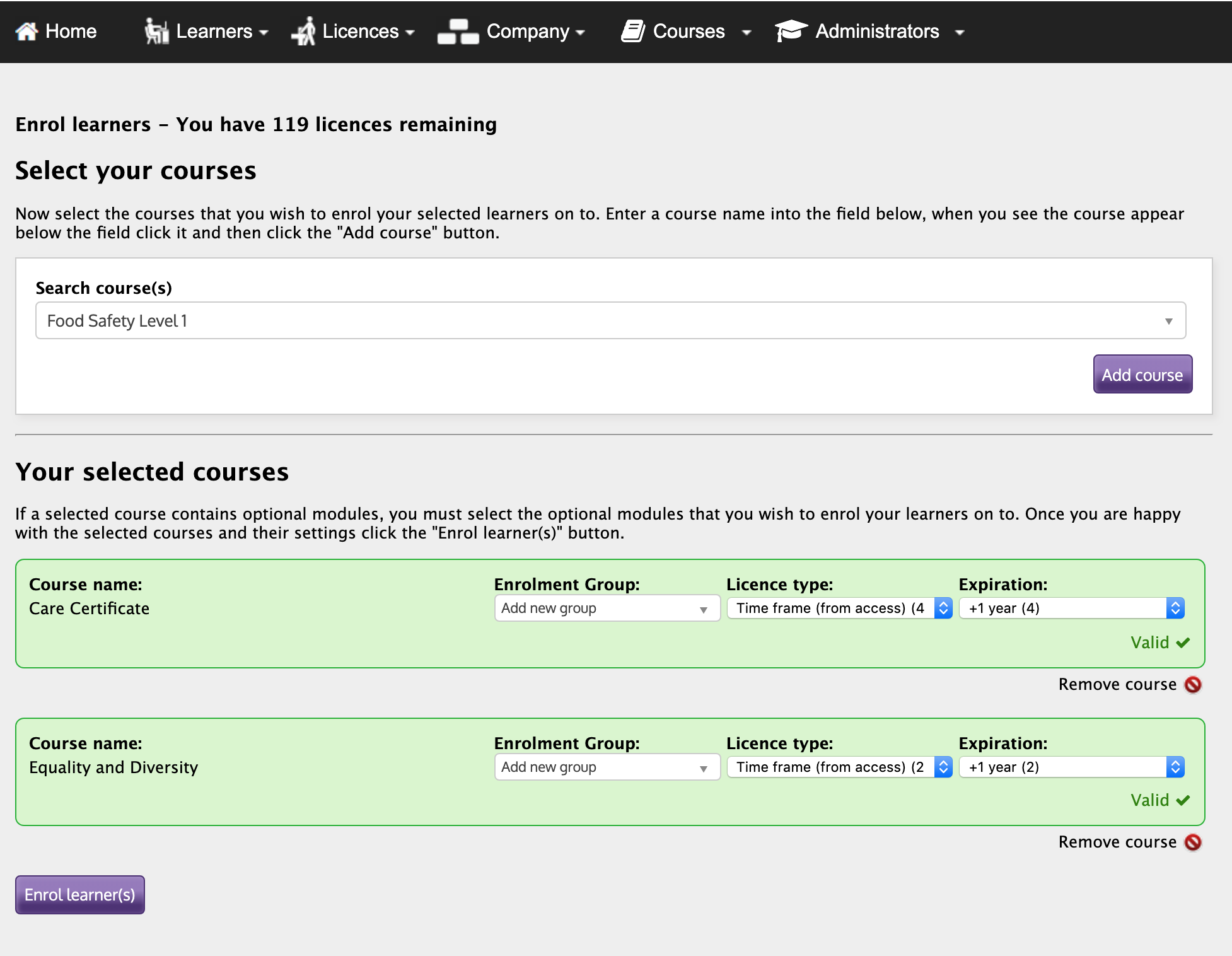
You will then need to choose which course(s) you wish to assign to which learner(s) using the ‘Search course(s)’ drop down menu.
Find the course you wish to assign in the menu, select it and then click the ‘Add course’ button which should add the course under the ‘your selected courses’ heading. You can repeat this process as many times as necessary until you’ve added all desired courses for the learner(s).
Once you’ve selected all the desired courses for the learner(s), each course should have 2 boxes next to it - ‘Licence Type’ and ‘Expiration’. Licence Type should be pre-populated with the option ‘Time frame’. For Expiration, you will need to use the drop down menu to select ‘+ 1 Year’.
When these options are selected, you can then select the ‘Enrol learner(s)’ button at the bottom left which will assign the course(s) you’ve just selected to all the learners you have just added.
Each learner will then receive an email to the email address provided that includes a link, username and password for their learner login to the LMS.
Please note: if no email address is provided for the learner(s) then you will need to check the email address you used for your Administrator logins as you will receive a copy of the enrolment results for each learner.
*Tip: When logging in, we recommend to copy and paste the username and password where possible to ensure accuracy and allow you to get logged in straight away.
Once you have created the learner account(s), if you need to login and take the course yourself, you can follow the steps below;
Learner login
Once the Administrator has created a learner account for you, you should either receive an email with a link, username and password for the LMS (if an email has been provided during set up) or they should provide these details to you.
To login, you can either click the link in the email or use the link below.
https://www.foodsafetyatwork.co.uk/login/
You will need to select the ‘Learner’ option when logging in.
Once logged in, you will be able to see your Dashboard which provides you with an overview of the course(s) you are enrolled in.
To start your course, either click the course title on the left or select ‘Enter course’ from the Actions drop down on the right.
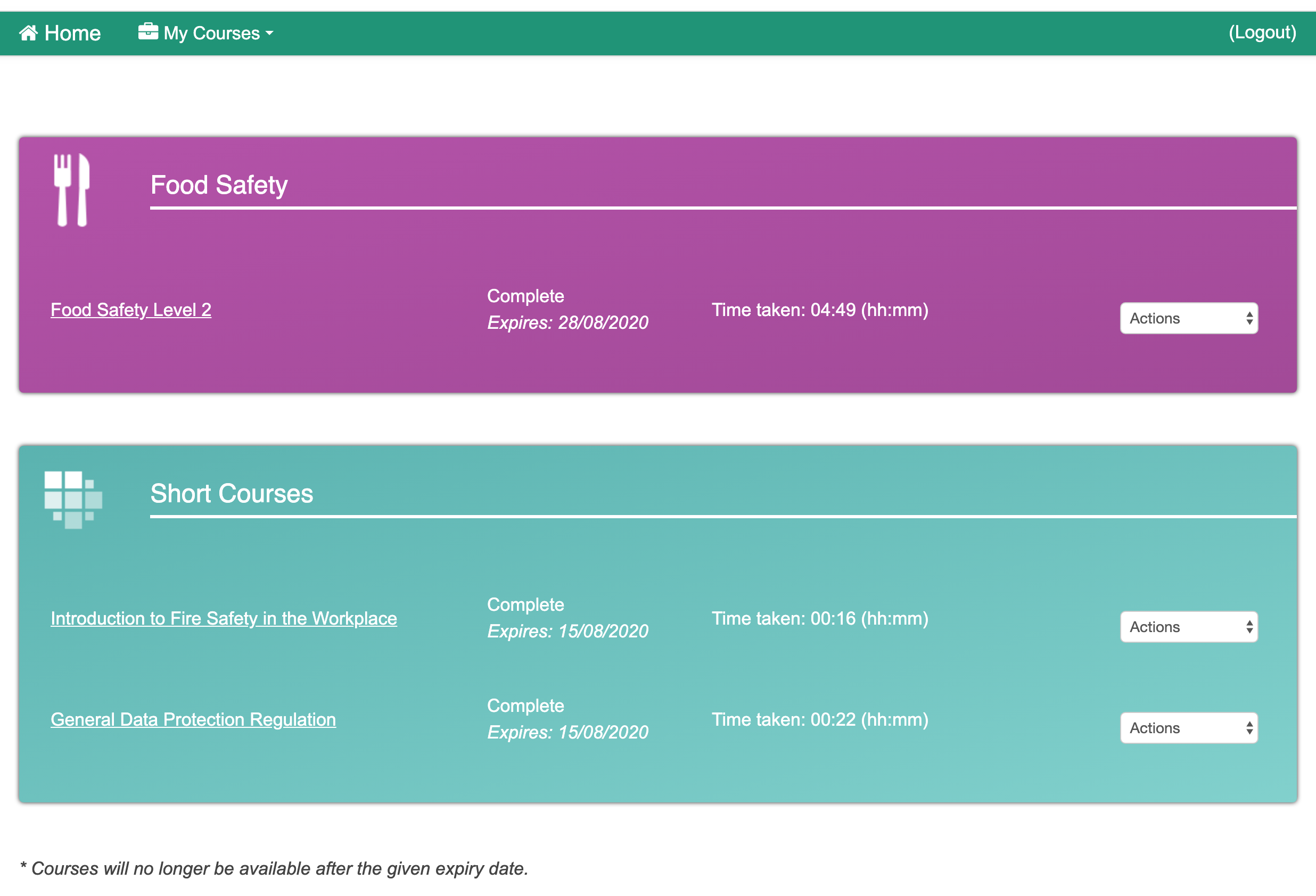
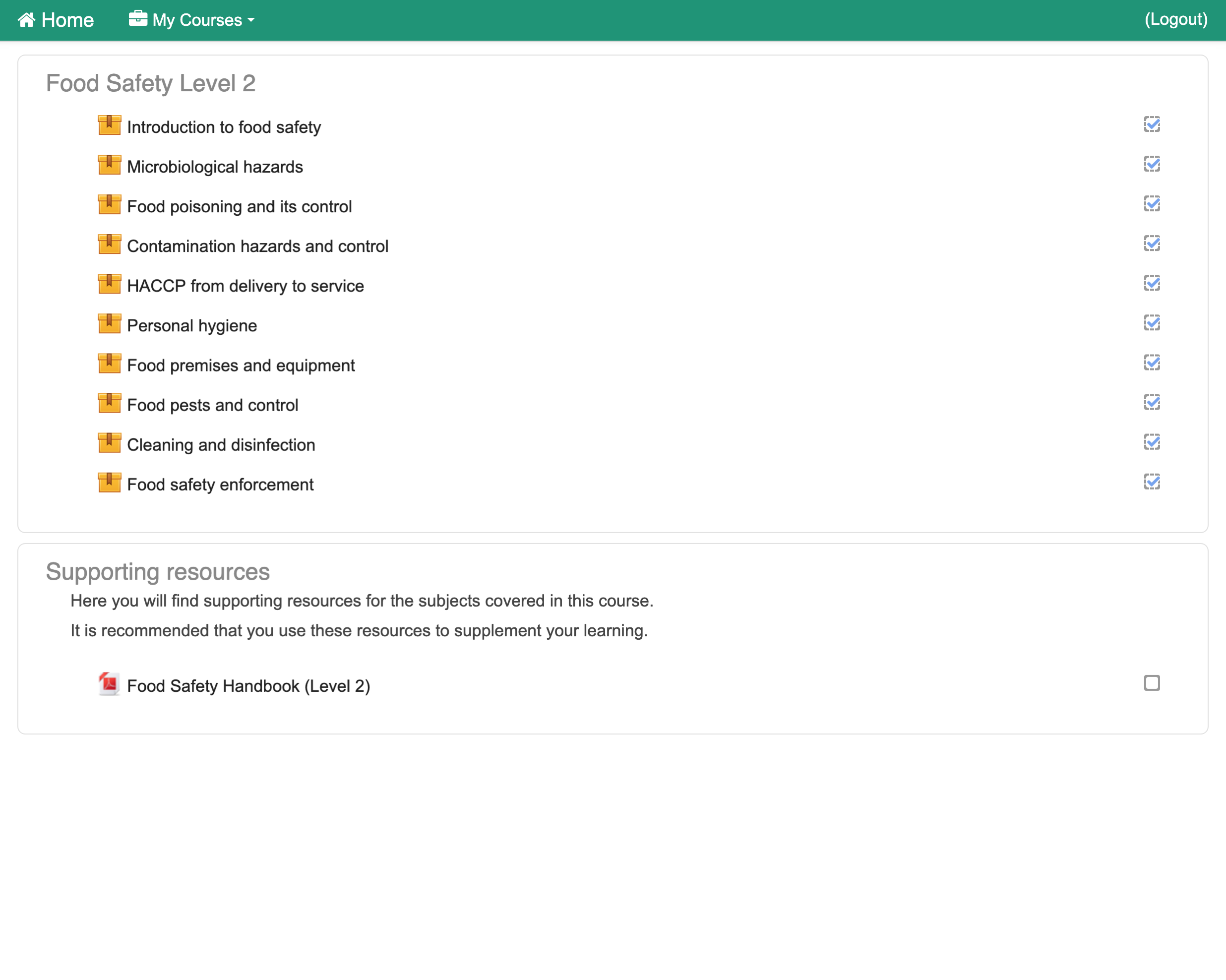
Once you have entered the course, you will be taken to a screen with a list of the course modules - clicking one of the modules in the list will open up the course content for that module. We recommend starting from the top of the list for a better learning experience.
Once a module is completed, the box at the right will be populated with a tick and you can move onto another module, repeating this process until the course is complete.