If you wish to change your learner password, you will need to speak to your Administrator (the person who purchased the course for you) as only Administrator accounts have access to amend passwords.
First, you will need to login to the LMS as an Administrator.
Once logged in, select the ‘Manage Learners’ option in the large green ‘Your Learners’ box.
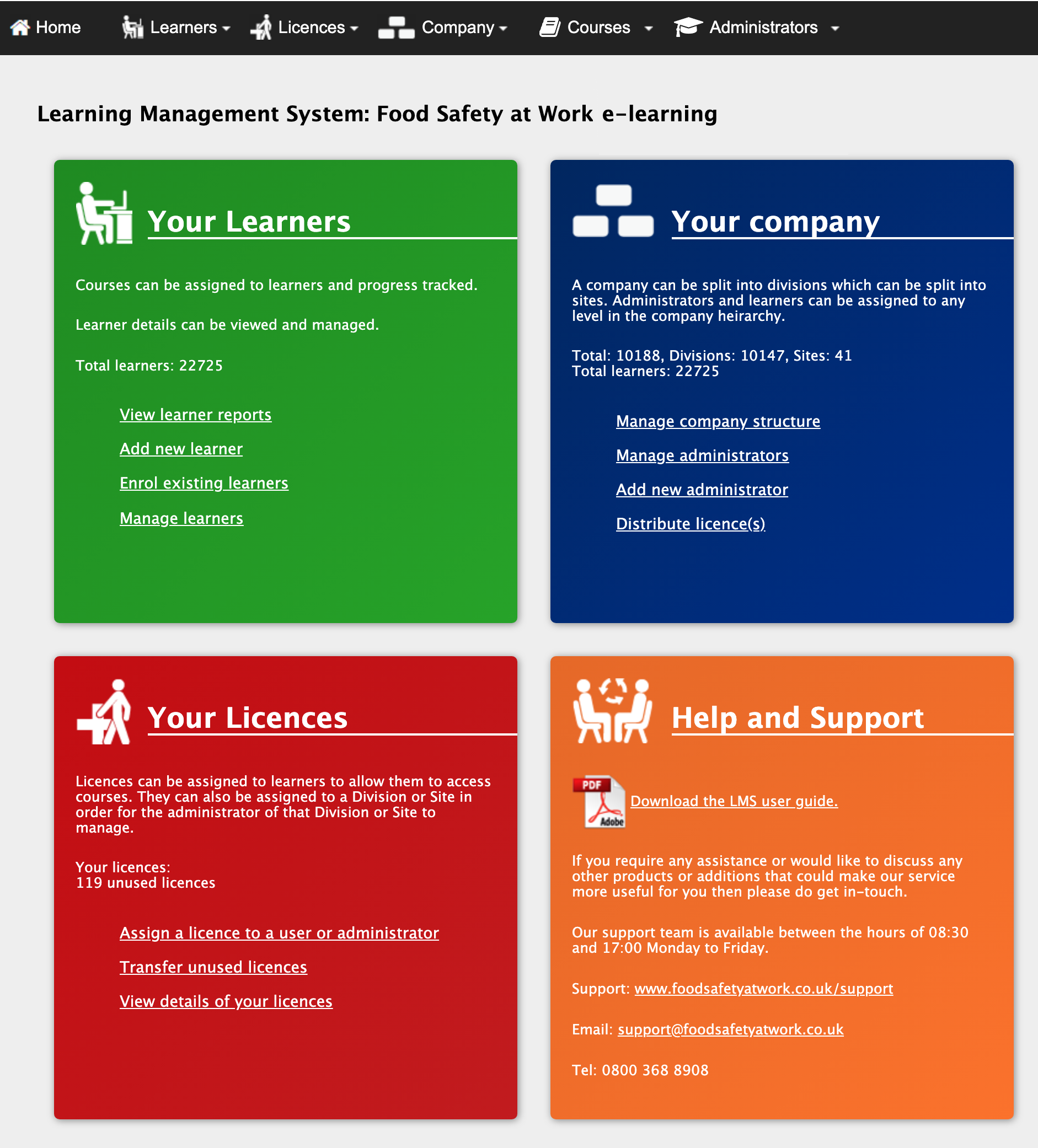
On the next screen, you should then be able to see a list of all the learners set up in your account. If you have a large number of learners in your account, you can aid your search by using the filter options at the top of the page to search for something more specific.
Once you’ve located the learner that you want to amend the password for, simply select the ‘ ’ icon on their row .

Once the key icon has been selected, the LMS will ask to auto-generate a new password - select the ‘Change’ option and you will now have generated a new password for the learner account.
If the new password is for a learner that is not yourself and they do not have an email address set up for their learner account, you will need to share the new password with them - you should receive a copy of this to the email address associated with your Administrator account.
Once logged in with the new password, the LMS will instantly ask for the password to be amended to something that suits you.