Upon successful completion of the course, you will gain access to a PDF certificate of completion that can be downloaded and printed for your records.
Certificates of completion can be downloaded from either the learner account or the Administrator’s LMS.
Downloading certificates as a Learner:
Learners will be able to access their certificate once they have successfully completed their course.
When the course is finished and completed, you will be taken back to the completed modules screen which should now have an option for ‘Certificate’ at the top.
Select this option and your PDF certificate should open in a new tab or window, allowing you to download and/or print.
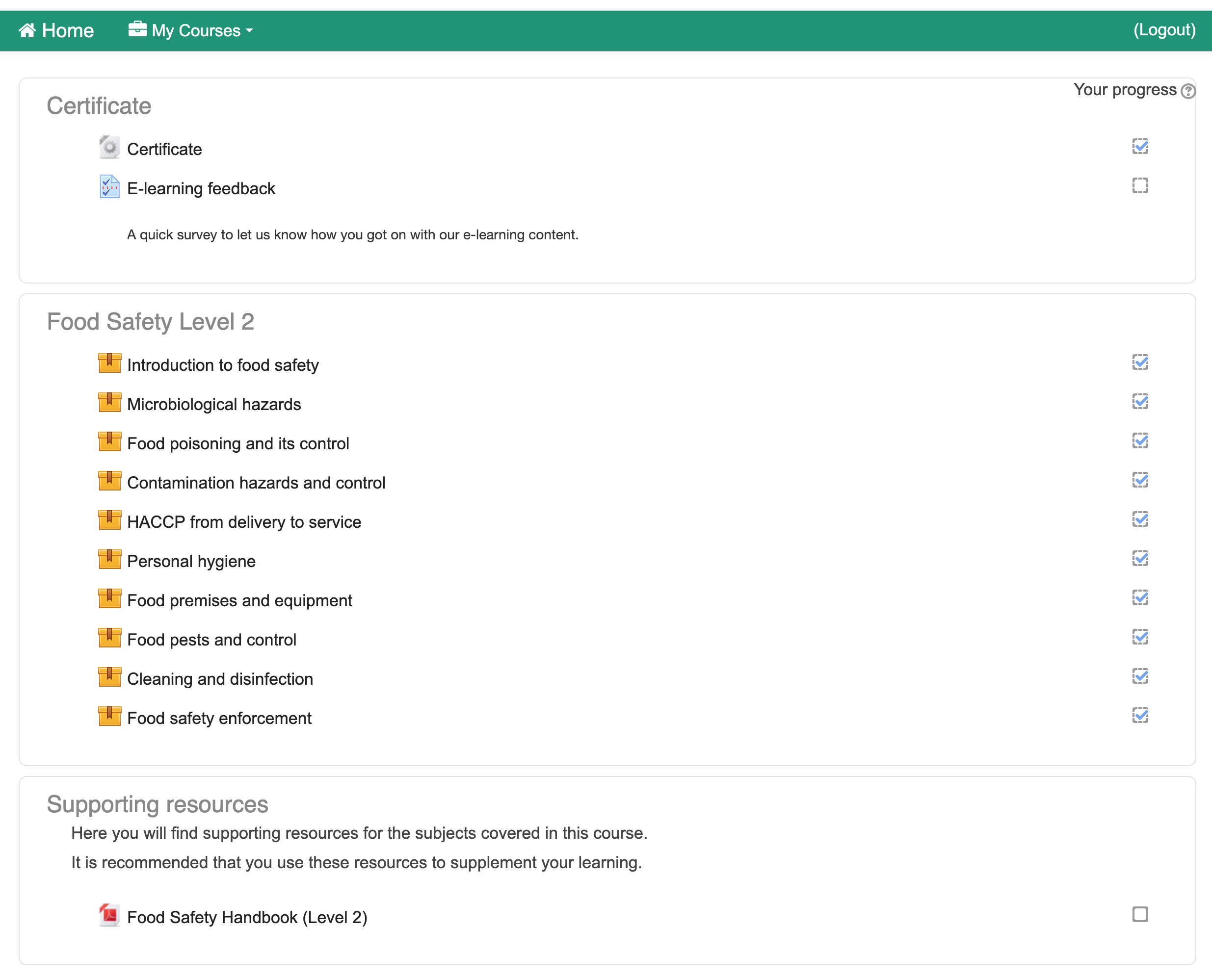
If you have completed your course but can't see the certificate download option, please exit the course and then re-enter it.
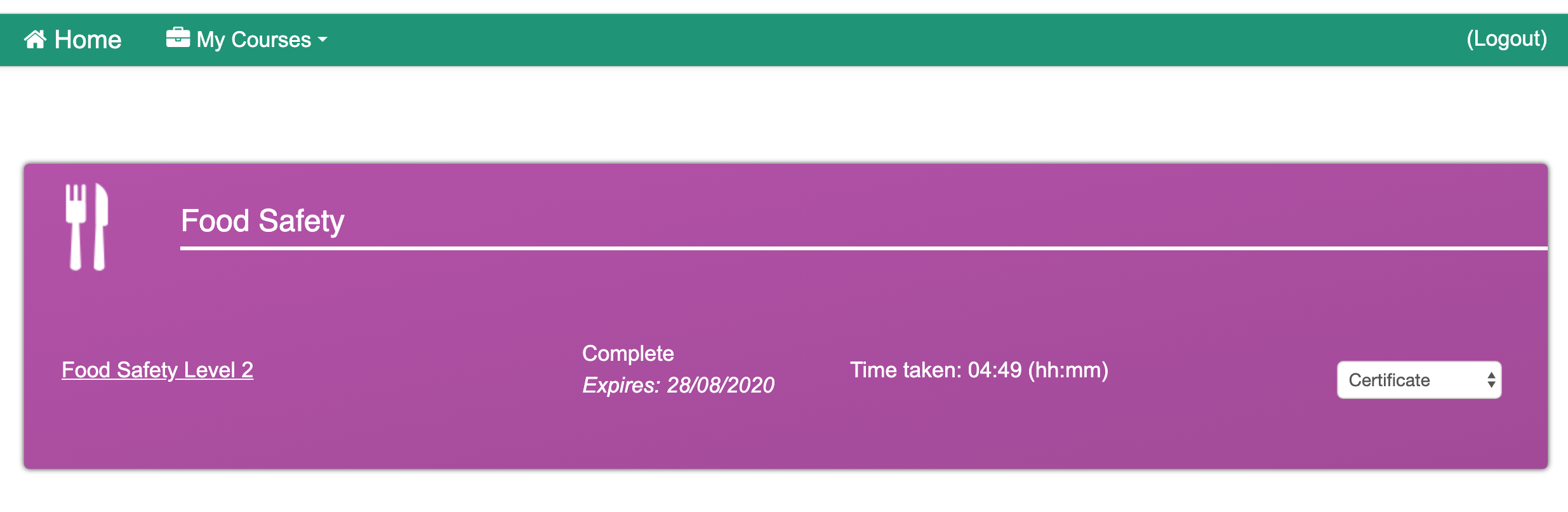
Alternatively, you can open your certificate from your dashboard page once you have logged in to your learner account.
To do this, select the ‘Actions’ drop down option to the right of the relevant course and choose one of the certificate options - ‘Certificate’ or ‘Certificate (no background)’.
This should then open your certificate in a new tab or window, allowing you to download and/or print.
Downloading certificates as an Administrator:
Administrators are also able to access certificates once a learner has successfully completed their course.
The Administrator will need to login to their LMS using their Administrator logins.
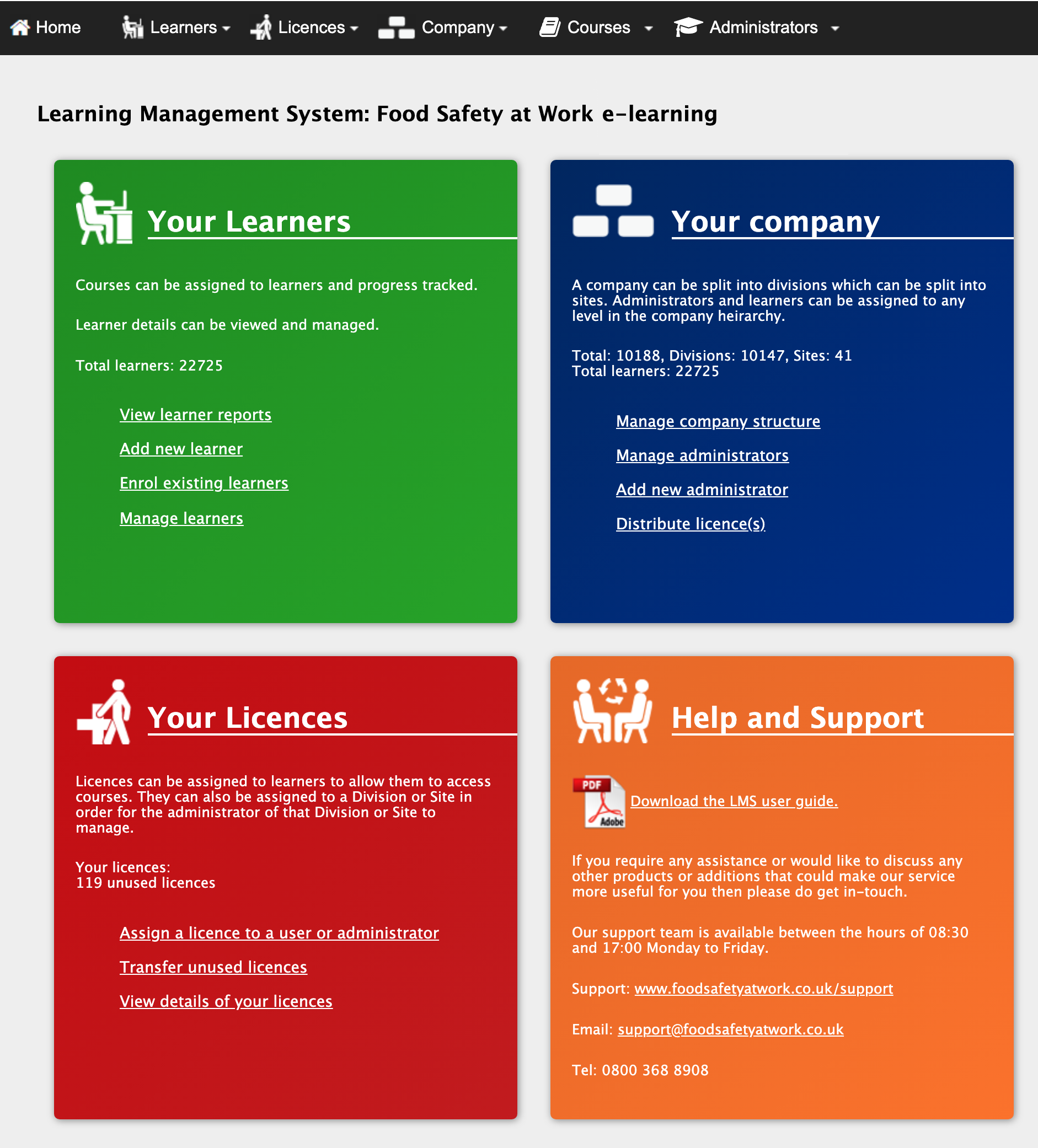
Once logged in, select the ‘View learner reports’ option in the green ‘Your Learners’ box.
On the next screen, you will be able to see a list of all the learners you have enrolled onto courses and their progress on the course(s). If you have a large number of learners in your account, you can aid your search by using the filter options at the top of the page to search for something more specific.
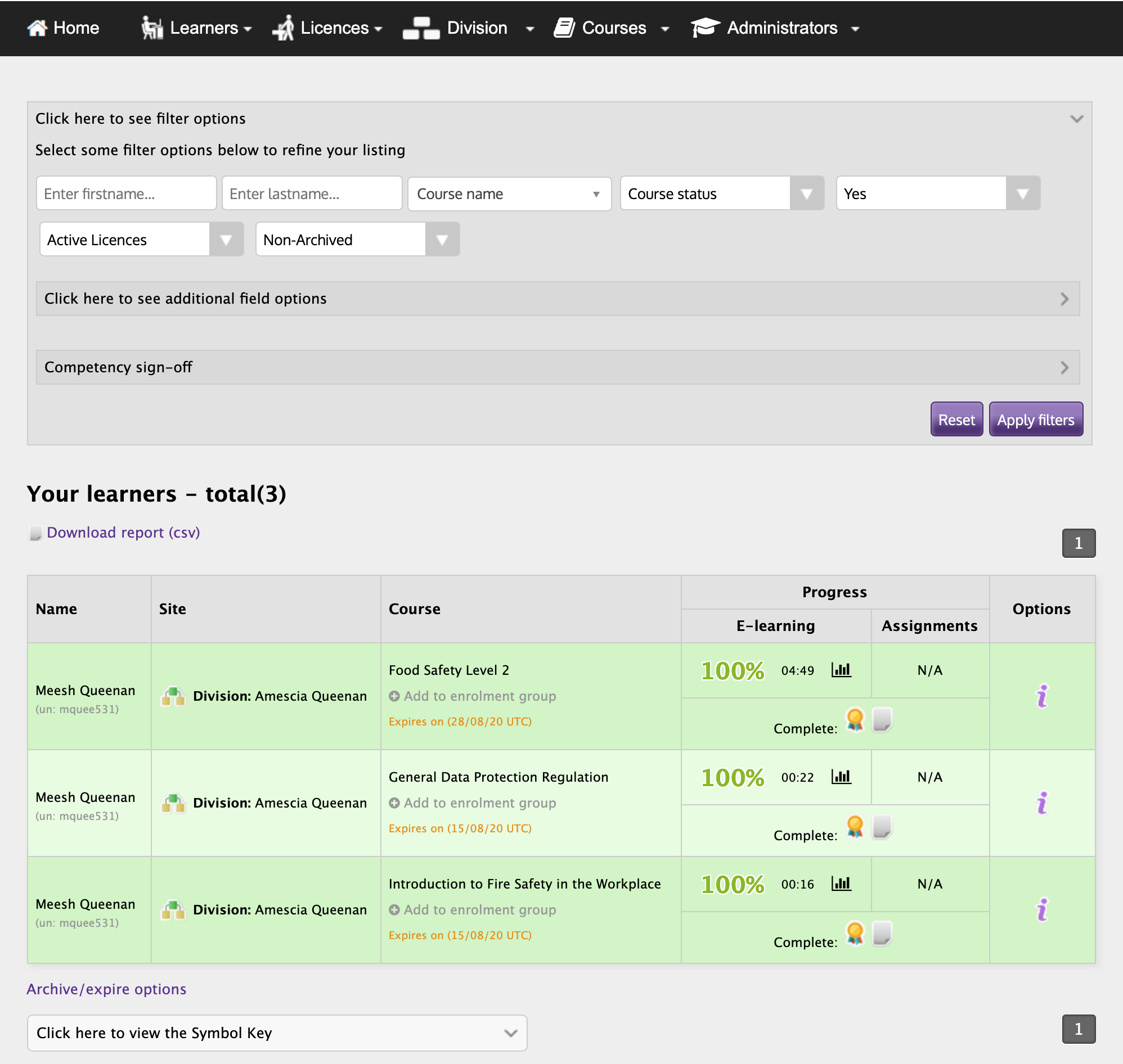
Once you have found the learner you need to access the certificate for, you will need to ensure that they have 100% under their E-learning Progress column.
Within the progress column, there should be a medal icon underneath the 100% indicator - selecting this will open the learner’s certificate in a new tab or window where you will be able to download and/or print the certificate.
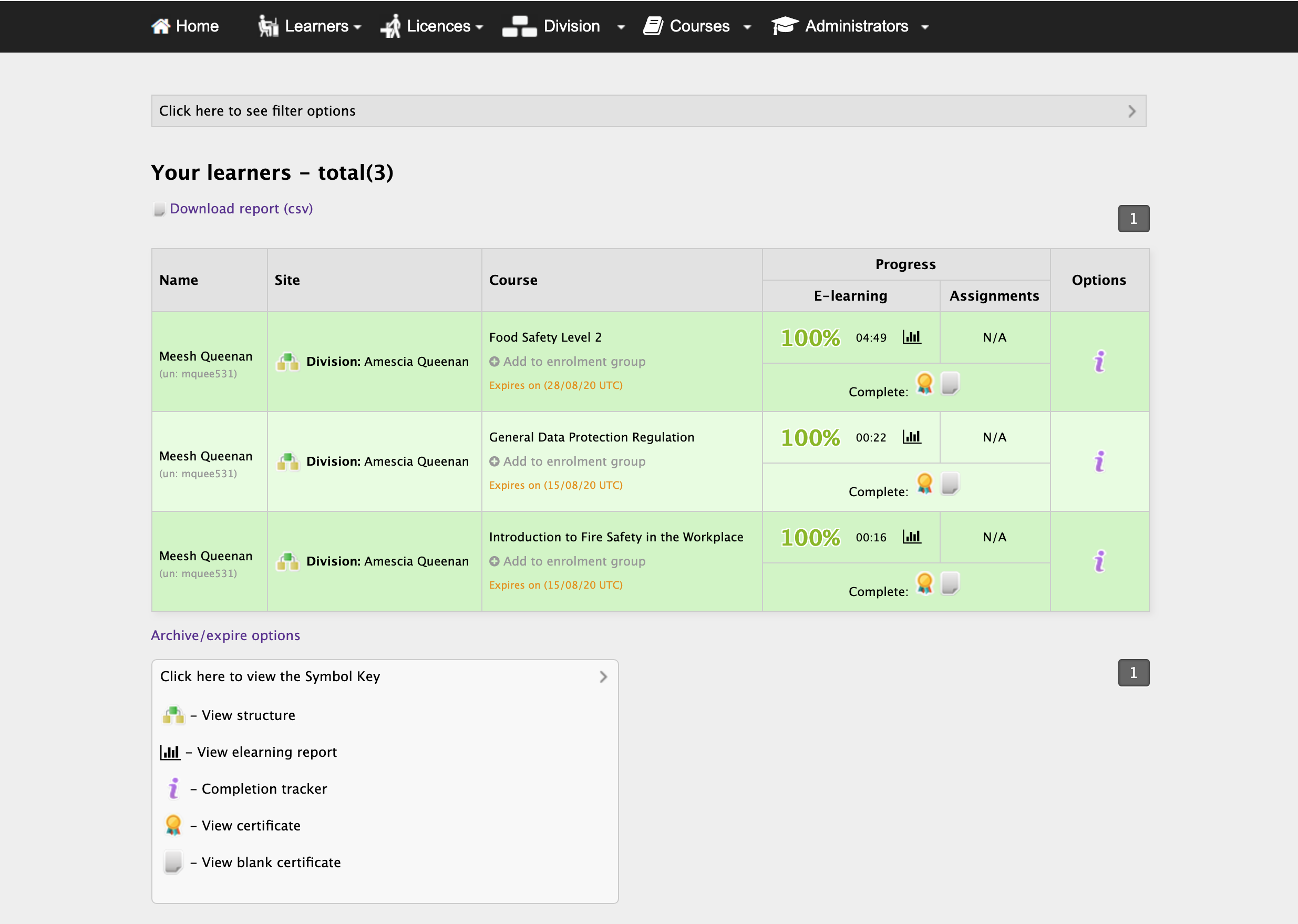
Please note: If the learner does not have 100% in their progress column and the medal icon is not visible then the course has not yet been completed and the certificate will not be accessible until this point.
You should still be able to see a percentage in their progress column which indicates how far through the course they are so far. You can also click the bar chart icon next to the percentage which will allow you to see how the learner is progressing with the modules on the course.