If you have purchased the course(s) for yourself and need some help getting started, please read the steps below.
If someone has purchased the course(s) for you to take and you need some assistance, please click here.
When purchasing your course(s), you will be asked to create a password for your account that will be used to login to the Learner Management System (LMS). Once your purchase is complete, you should receive an order confirmation email followed by a separate welcome email - both emails contain links to login to the LMS. The LMS allows you to assign the course(s) you have purchased.
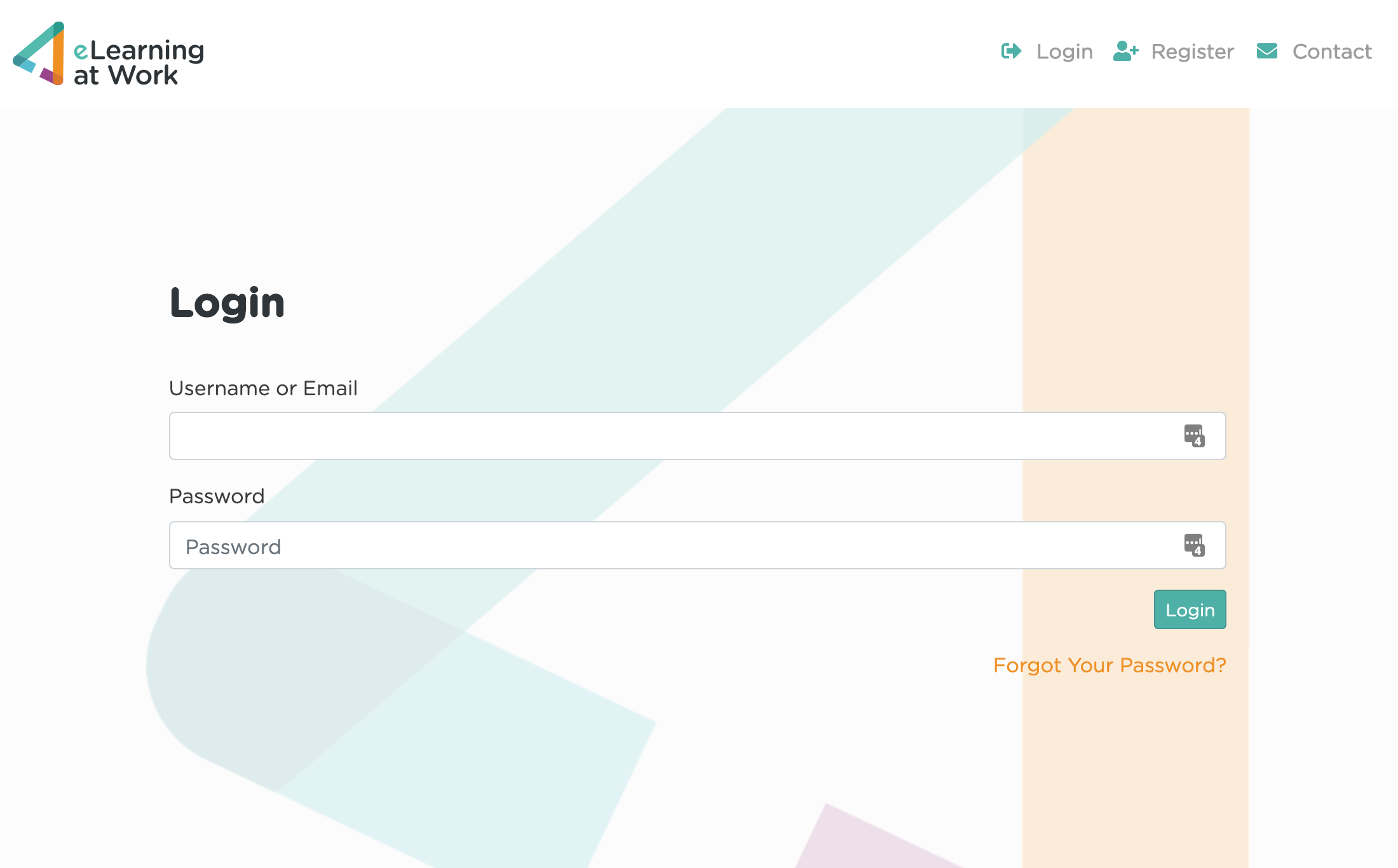
To login, you can either click the links in the email or use the link below.
https://lms.elearningatwork.co.uk/login
You can login using your email address.
If you have placed an order on www.elearningatwork.co.uk you can use the same login details to access the LMS.
If you have received an invitation from eLearning at work, please use this email address to login.
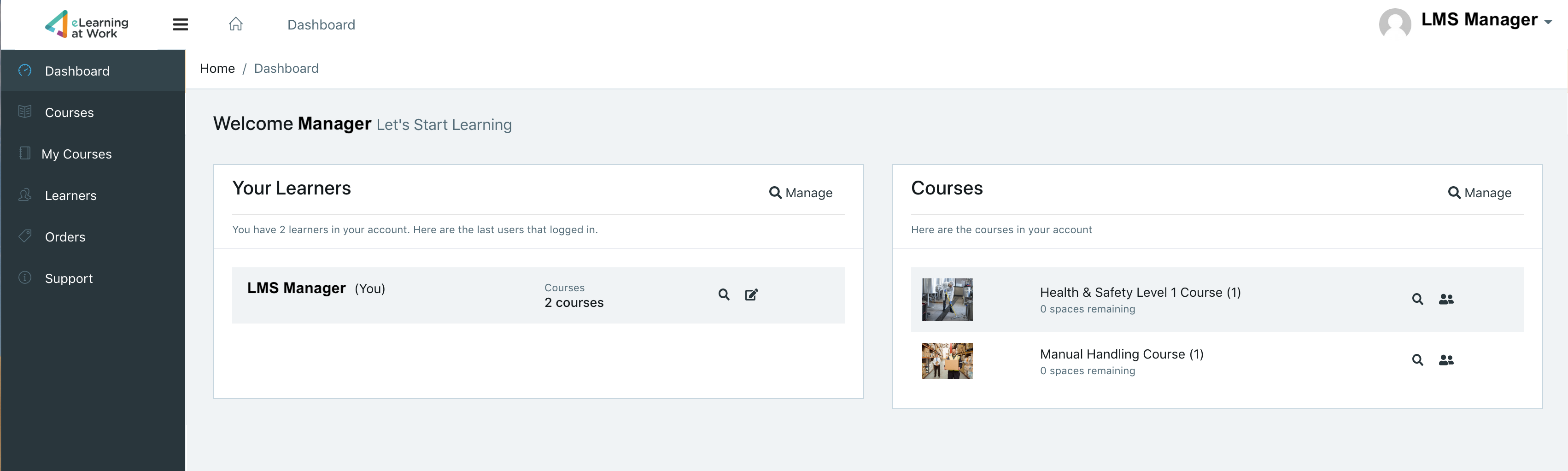
Once you've logged in to the Dashboard, you should be able to see an overview of the course(s) you've purchased and the learners set up in your account. As a Manager, you are automatically set up as a learner as well which means you don't need to create a separate account.
Assigning a course
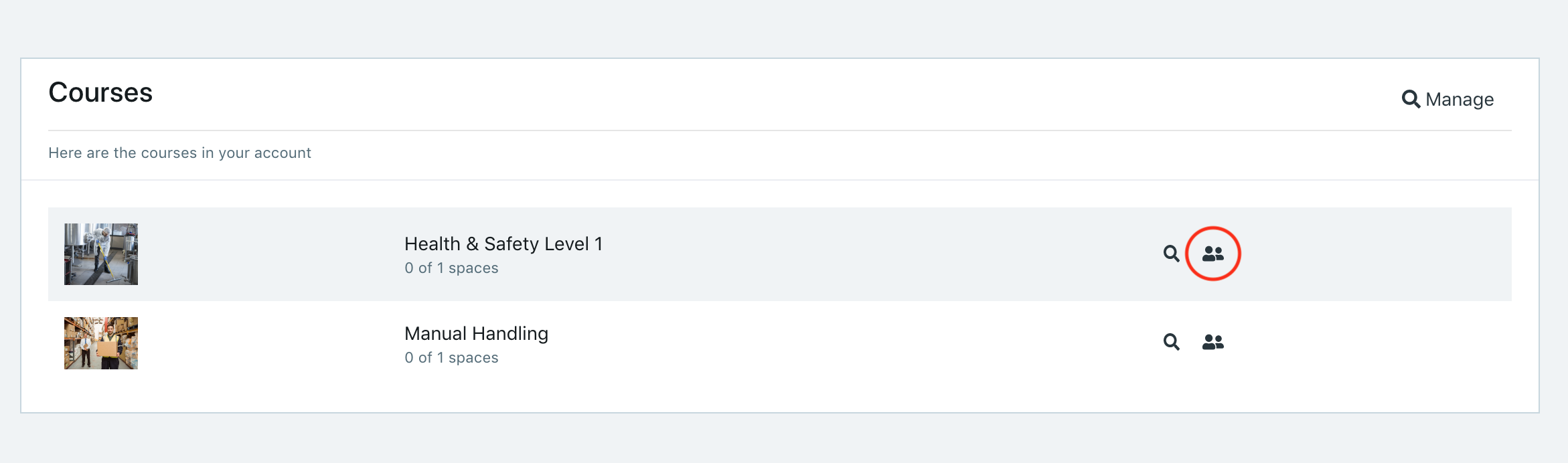
To assign yourself to a course, you can do this via the Courses section of the Dashboard view.
Select the 'Manage Learners' icon for the course you wish to add yourself to;
On the course learners screen, start typing the name or email address of the learner you wish to add - yourself in this case!
Select the name when it appears in the drop down menu - the user is now assigned to that course and you should receive an email invitation.
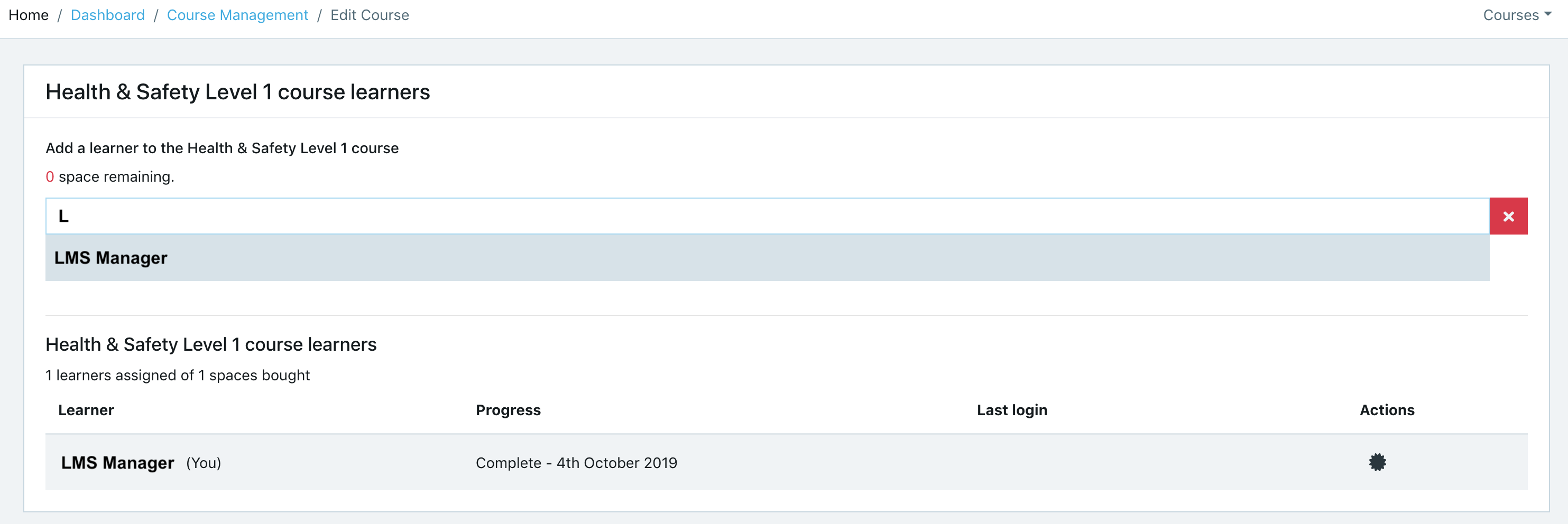
If you do not receive a confirmation message, make sure the user is not already assigned to the course, and that there are spaces available on the course.
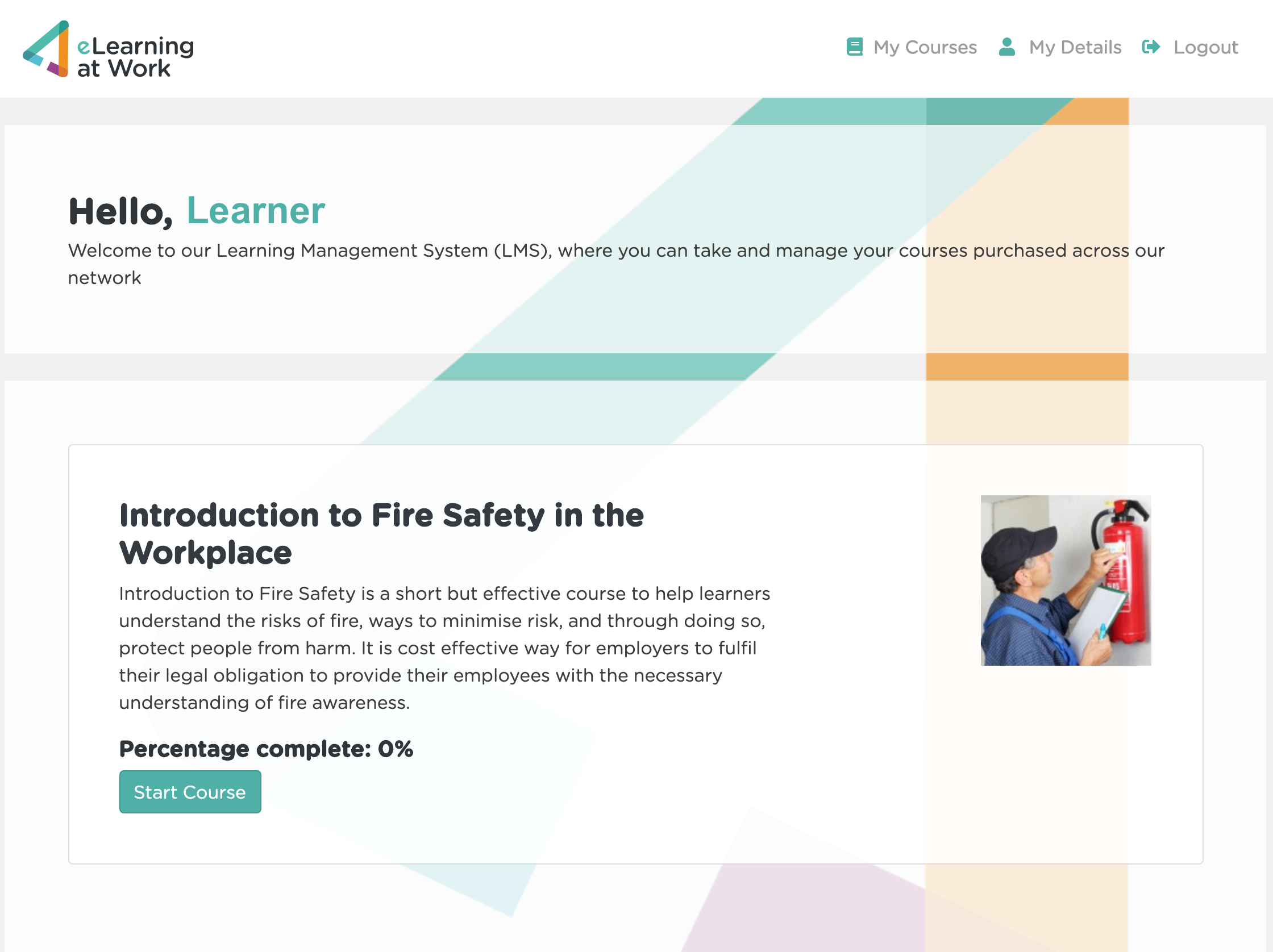
Once you have enrolled yourself on the course, you can select the ‘My Courses’ option from the menu on the left and find the course you want to take.
If you are only enrolled for one course then you will automatically be taken to the course page to start. Click ‘Start Course’ or ‘Continue Course’ and you will be taken to the course page. You can then select the module you wish to start.
Learner Login
Once the LMS Manager has created a learner account for you and enrolled you on a course, you should either receive an email invitation with a link to 'Take course' (if an email has been provided during set up) or they should provide your login details to you.
To login, you can either click the link in the email or use the link below.
https://lms.elearningatwork.co.uk/login
If you have received an invitation from eLearning at work, please use this email address to login.
Once logged in, you will be able to see your Dashboard which provides you with an overview of the course(s) you are enrolled in.
To start or continue a course, click the ‘Start Course’ or ‘Continue Course’ button and you will be taken to the course page.
Once you have entered the course, you will be taken to a screen with a list of the course modules - selecting 'Enter Module' for the module you wish to study will open up the course content for that module. We recommend starting from the top of the list for a better learning experience.
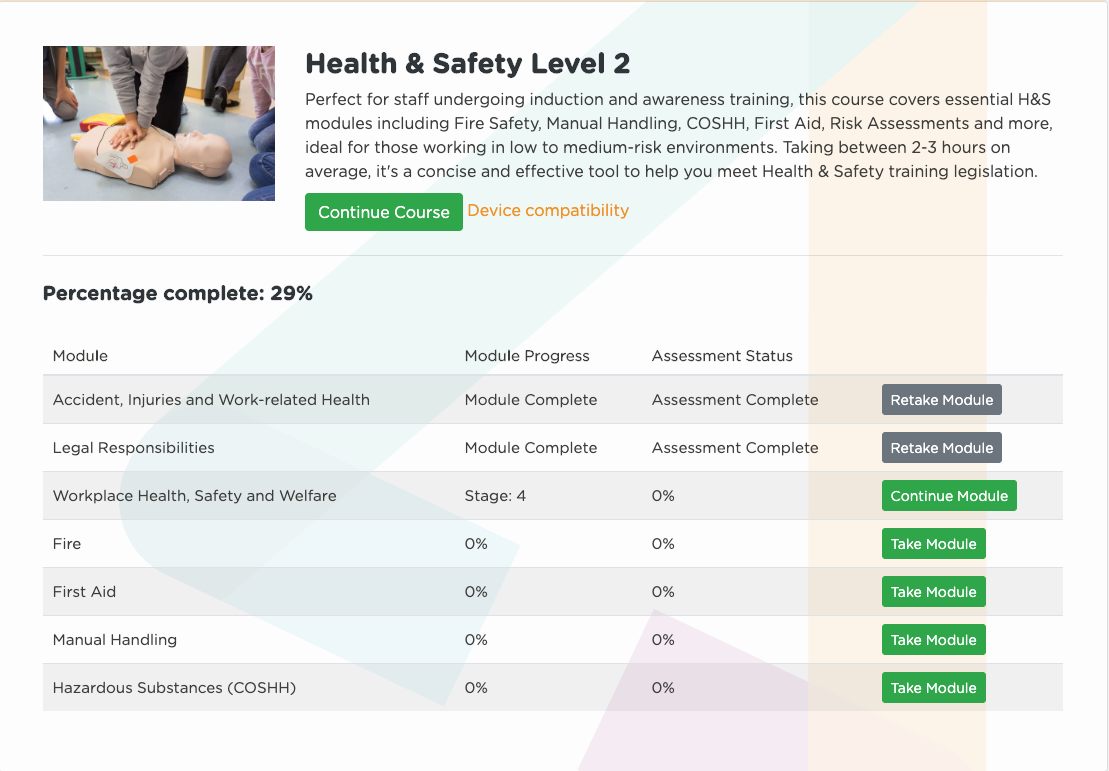
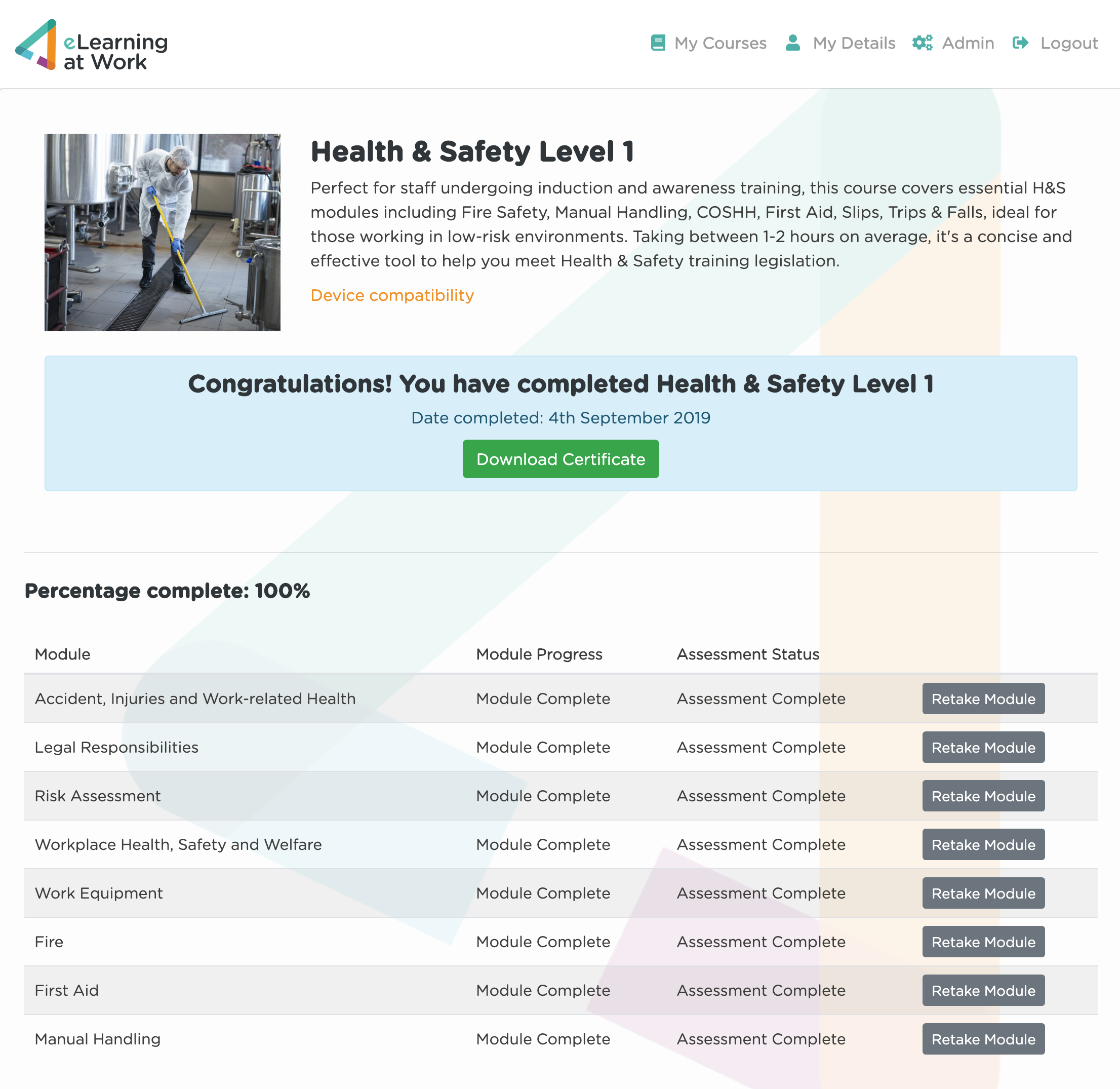
Once a module is completed, the 'Module Progress' and 'Assessment Status' columns will update to reflect this and the button will change to 'Retake Module'. You will also gain access to your course certificate that you can print or download for safekeeping.