Upon successful completion of the course, you will gain access to a PDF certificate of completion that can be downloaded and printed for your records.
Certificates of completion can be downloaded from either the learner account or the LMS Manager’s account.
Downloading certificates as a Learner:
Learners will be able to access their certificate once they have successfully completed their course.
When the course is finished and completed, you will be taken back to the completed modules screen which should now have an option for ‘Download Certificate’ at the top.
Select this option and your PDF certificate should open in a new tab or window, allowing you to download and/or print.
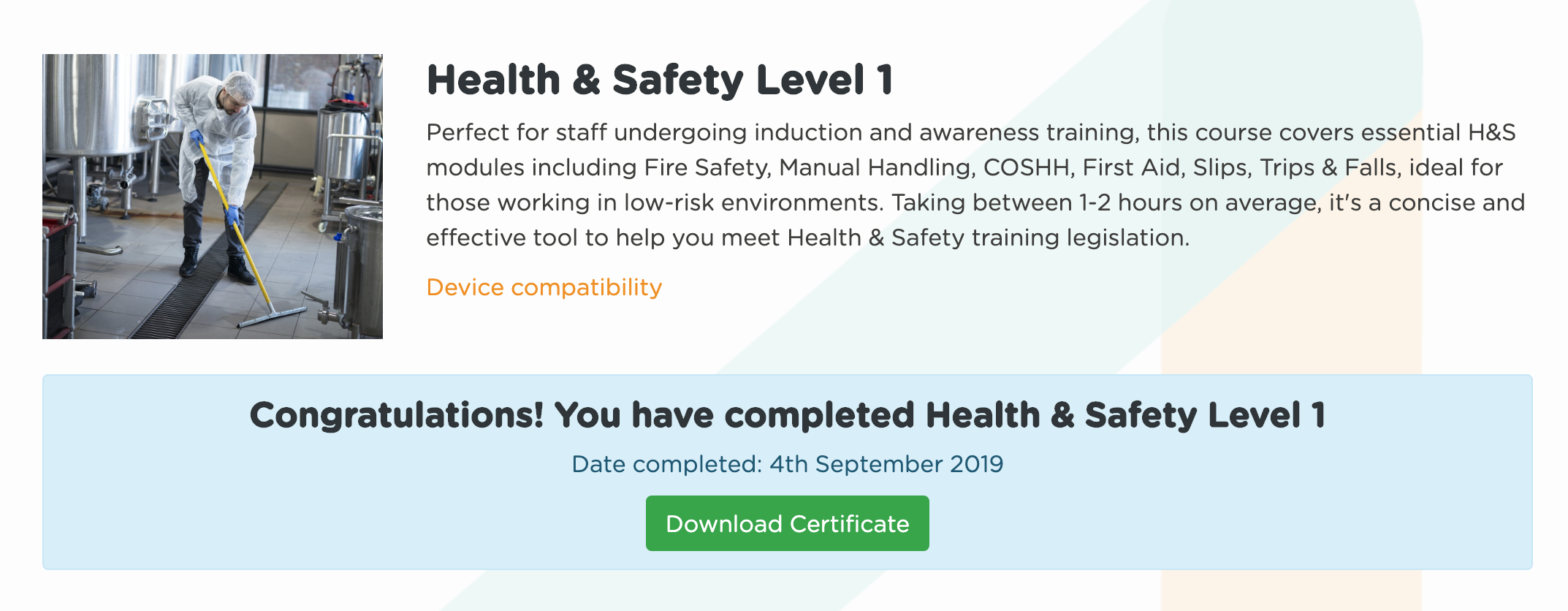
If you have completed your course but can't see the certificate download option, please exit the course and then re-enter it.
You should also receive a congratulatory email with a ‘View Certificate’ button that will prompt you to login if you aren’t already where you can then follow the steps above to print or download the certificate.
Downloading certificates as an LMS Manager:
When a Learner has completed a course, you will also be able to access their certificate. You should receive an email notification once a learner has successfully completed a course.
To access their certificate, you will need to login to the LMS and navigate to ‘Courses’ from the menu on the left, selecting the ‘Manage Learners’ icon.
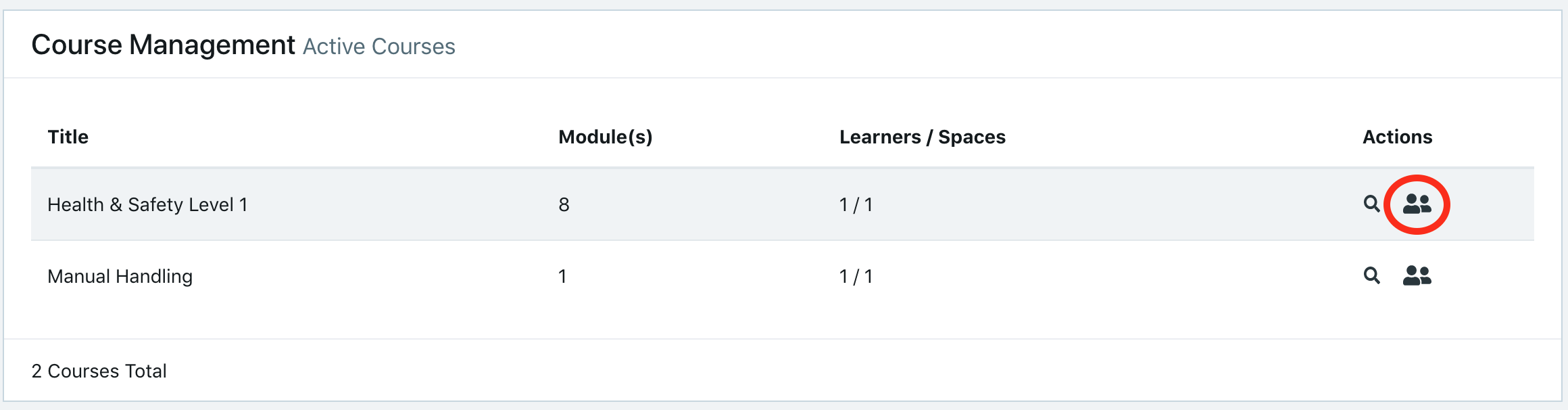
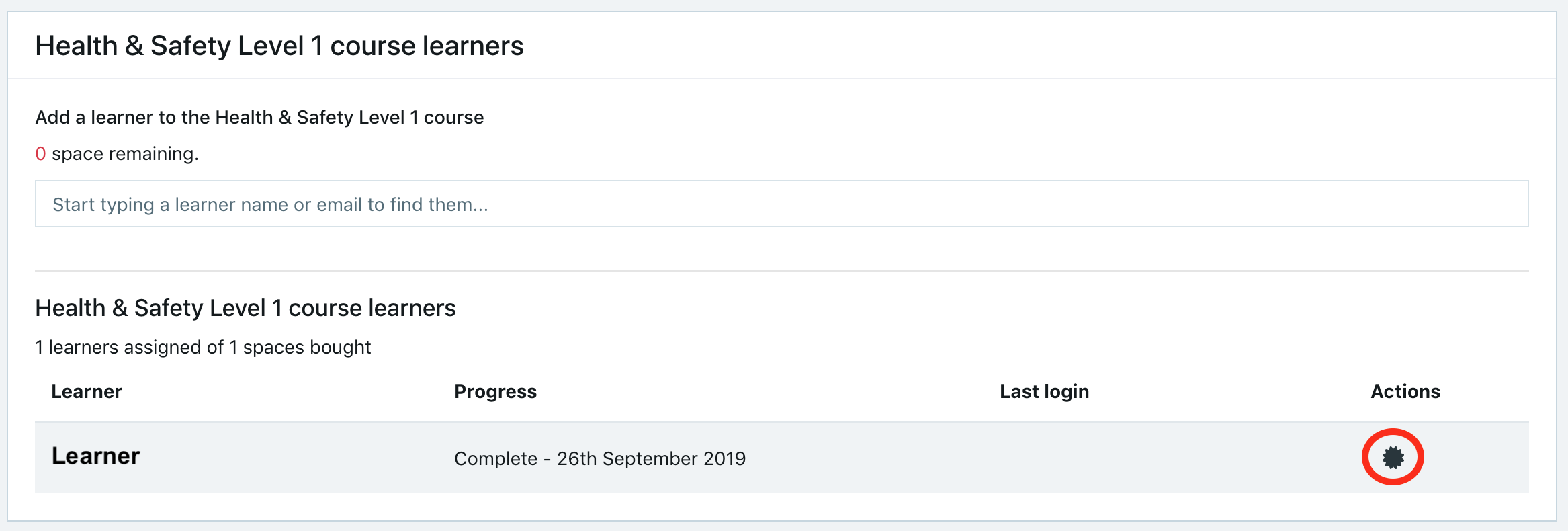
This should then display a list of all the learners enrolled on the course - if a learner has completed the course, their status should read ‘Complete’ with the percentage at ‘100%’ and they should have a ‘View Certificate’ icon under ‘Actions’. Select the ‘View Certificate’ icon and this will open the PDF certificate, allowing you to download for safekeeping.
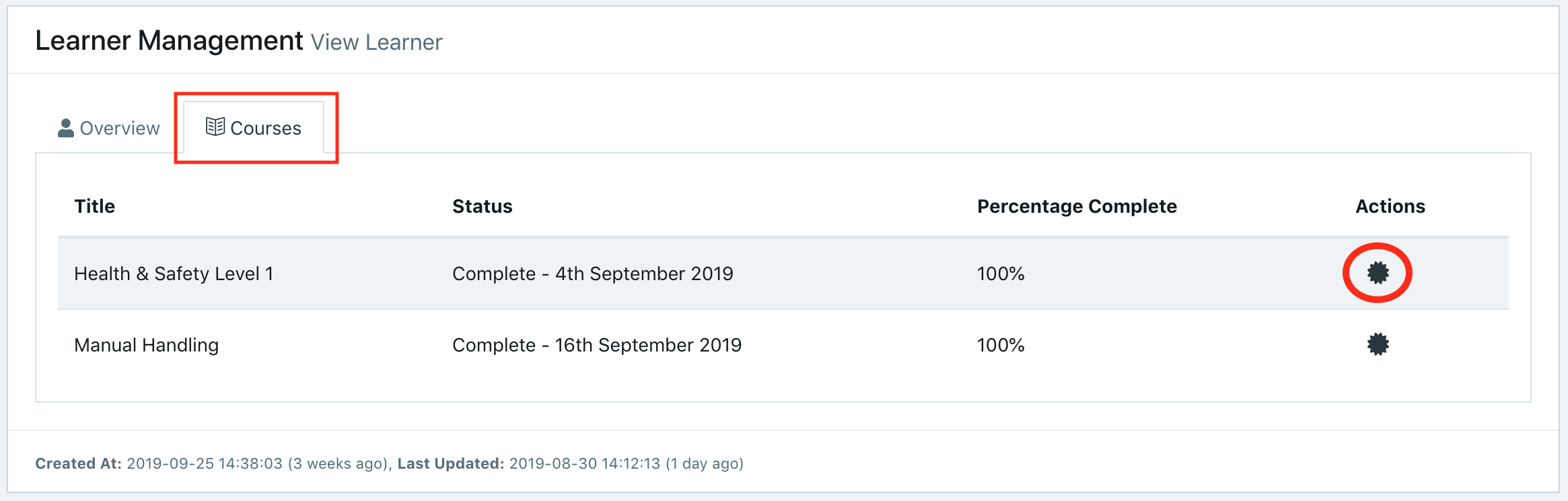
You can also access the learner’s certificate by navigating to ‘Learners’ from the menu on the left and selecting the ‘View’ icon for the relevant learner.

When viewing the learner, select the ‘Courses’ option next to ‘Overview’ at the top left - if a learner has completed the course, their status should read ‘Complete’ with the percentage at ‘100%’ and they should have a ‘View Certificate’ icon under ‘Actions’. Select the ‘View Certificate’ icon and this will open the PDF certificate, allowing you to download for safekeeping.